Home Wi-Fi Acting Slow: 7 Simple Reasons It “Lags” and What to Do
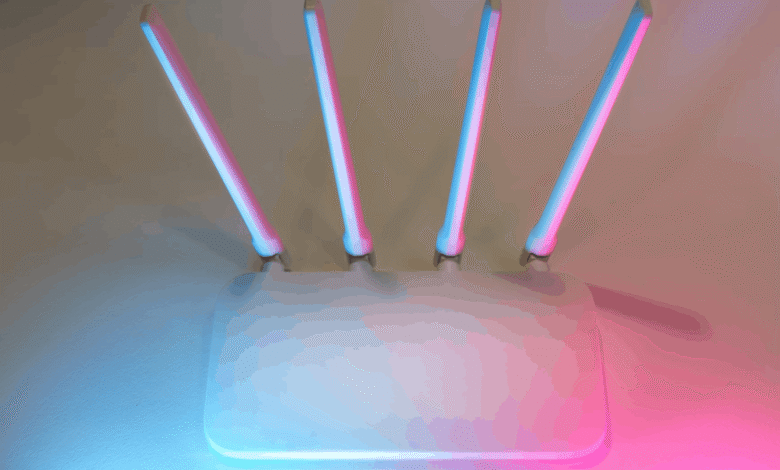
Home Wi-Fi is supposed to be invisible. When everything works, nobody notices. When it “lags,” every app suddenly feels guilty, every video buffers at the worst moment, and the router becomes the household’s unofficial villain. The good news is that most Wi-Fi problems are boring, repeatable, and fixable without buying a spaceship.
Even troubleshooting habits have changed. When checking whether a site is slow because of the network or because of device settings, some people compare behavior across setups and even look up a list of antidetect browsers to understand how different environments can affect loading, caching, and fingerprints. The point is not to get fancy, but to isolate the real cause instead of guessing.
Reason 1: Bad Router Placement
A router shoved behind a TV, inside a cabinet, or on the floor is basically Wi-Fi self-sabotage. Signals hate obstacles, especially metal, thick walls, mirrors, and big appliances. A small move can change everything.
Put the router in an open spot, closer to the center of the home if possible. Height helps too. A shelf often beats the corner of a desk.
Reason 2: Too Many Walls and “Signal Killers”
Concrete, brick, and even tiled bathrooms can swallow Wi-Fi. Older buildings are especially brutal. If one room always struggles, it might not be “bad internet,” it might be physics.
A mesh system or a wired access point can solve this, but first confirm the weak zones by walking around with a speed test. If speed drops hard after one wall, the layout is the story.
Reason 3: Congested Channel in the Neighborhood
In apartment buildings, dozens of routers fight on the same channels. That creates interference, especially on 2.4 GHz. Devices can connect fine but still feel sluggish.
Switching channels can help. Many modern routers do this automatically, but not all do it well. If the router has an app or web panel, try selecting a less crowded channel.
Reason 4: The Wrong Band for the Job
2.4 GHz travels farther but is slower and more crowded. 5 GHz is faster but weaker through walls. If a device is far from the router and clings to 5 GHz, speed can drop. If a device is close but stuck on 2.4 GHz, speed can feel capped.
A practical fix is to separate Wi-Fi names: one for 2.4 and one for 5, then choose intentionally. Some households prefer one combined name, but split names make debugging easier.
Reason 5: Old Hardware or Outdated Firmware
Routers age. Standards change. A router from years ago might still “work,” but struggle with modern traffic, multiple streams, and smart home devices. Firmware updates also matter because they fix stability bugs and security holes.
Updating firmware is not exciting, but it is one of the highest return actions. If the router reboots randomly, runs hot, or cannot handle multiple devices, replacement might be cheaper than constant frustration.
Reason 6: Too Many Devices Competing
Streaming, video calls, cloud backups, game downloads, smart cameras, and automatic updates can all run at once. Wi-Fi does not “divide fairly” unless the router supports good traffic management.
Here is the simple reality: one heavy device can ruin the experience for everyone if settings are messy.
7 Common Causes of Wi-Fi Lag at Home
- Router hidden behind objects or placed too low
- Thick walls and reflective surfaces blocking signal
- Crowded channels from nearby networks
- Devices using the wrong band for distance
- Router firmware outdated or hardware too old
- Too many active devices fighting for airtime
- ISP issues or noisy cable line causing instability
If multiple problems stack, the network can feel cursed. Usually it is just overloaded.
Reason 7: ISP Problems and Line Noise
Sometimes Wi-Fi is innocent. The internet connection itself might be unstable due to the provider, damaged cables, or a weak signal coming into the home. If Wi-Fi speed tests look fine locally but websites still stall, the issue may be upstream.
A quick test is to connect a laptop to the router with an Ethernet cable. If the wired connection is also unstable, the ISP or modem is likely the issue.
What to Do: Fixes That Work Without Overcomplicating Life
The best approach is step-by-step. Change one thing, test, then move on. Randomly toggling settings can create new problems and make it impossible to know what helped.
Start with placement and reboots. Then check channel congestion and bands. After that, look at device behavior and ISP stability.
Fixes That Usually Improve Wi-Fi Fast
- Move the router to an open, central spot and raise it off the floor
- Reboot the modem and router, then test again after five minutes
- Update router firmware and confirm automatic updates are enabled
- Separate 2.4 GHz and 5 GHz names to control what connects where
- Change Wi-Fi channel if the neighborhood is crowded
- Pause cloud backups and large downloads during calls or gaming
- Add a mesh node or wired access point for dead zones, not just a stronger router
These steps are practical because they match the real causes. Most Wi-Fi problems are not mysterious. They are structural.
A Final Reality Check
Home Wi-Fi “lag” often feels personal, like the network is acting rude on purpose. In reality, Wi-Fi is just radio, traffic, and placement. With a few targeted fixes, a home can go from constant buffering to quiet reliability. The goal is not perfect speed numbers. The goal is a connection that behaves like good infrastructure: present, stable, and easy to forget.