Instructions Manual HSSGameStick: Setup, Usage & Troubleshooting Guide
If you recently purchased an HSS Game Stick and are looking for a clear, easy-to-follow instructions manual HSSGameStick, you’re in the right place. Many users struggle because the official manual is either missing or unclear, or inconsistent across different device versions. This guide serves as a complete replacement instruction manual, walking you through setup, controls, settings, adding games, and fixing common issues. Whether you’re a beginner or an advanced user, this article covers everything you need to know about using HSSGameStick correctly.
What Is HSSGameStick?
HSSGameStick is a plug-and-play retro gaming console that connects directly to your TV via HDMI. It comes preloaded with thousands of classic games from multiple consoles, including NES, SNES, Game Boy, Sega, PlayStation 1, and more.
Most HSSGameStick devices are rebranded versions of generic 4K game sticks, meaning the instructions are usually universal across similar models.
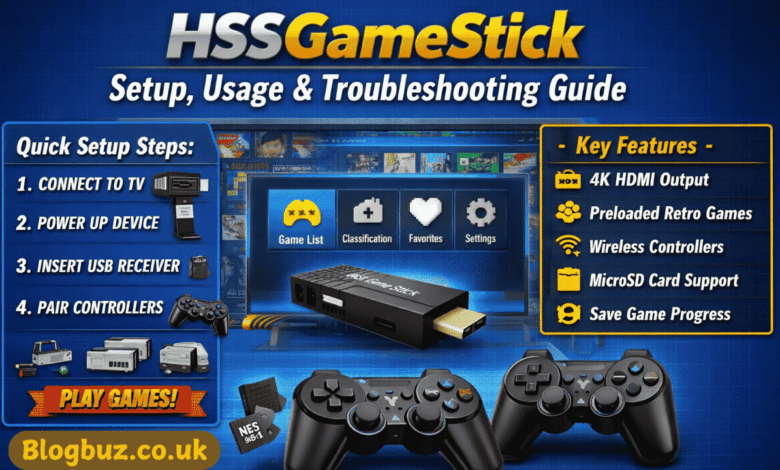
Key Features
- HDMI output (supports 4K upscaling)
- Preloaded retro games
- Wireless controllers
- MicroSD (TF) card support
- Plug-and-play design
- Save/load game progress
HSSGameStick Box Contents
Before starting, confirm that your package includes the following items:
- HSSGameStick console
- Wireless controllers (1 or 2)
- USB wireless receiver
- USB power cable
- HDMI extension cable
- MicroSD card (pre-installed)
If anything is missing, the setup may not work correctly.
Instructions Manual HSSGameStick – Initial Setup Guide
Connect to TV
- Plug the HSSGameStick into your TV’s HDMI port
- If space is tight, use the included HDMI extension cable
Power the Device
- Connect the USB power cable to:
- TV USB port OR
- 5V/1A–2A USB power adapter
⚠️ If the device fails to boot, use a wall adapter instead of the TV USB.
Insert Wireless Receiver
- Plug the USB receiver into the USB port on the game stick
Turn On & Select HDMI Input
- Power on your TV
- Select the correct HDMI input
- The HSSGameStick menu should appear within 10–20 seconds
Pairing Controllers (Important Step)
Most HSSGameStick controllers auto-pair, but if they don’t:
- Insert batteries into the controllers
- Hold START + HOME for 5 seconds
- Wait for the LED indicator to stabilise
- The controller should connect automatically
Repeat for Player 2 if applicable.
Understanding the Main Menu
The HSSGameStick interface is simple and controller-based.
Main Menu Sections
- Game List – All available games
- Classification – Games sorted by console
- History – Recently played games
- Favourites – Saved games list
- Search – Find games by name
- Settings – System configuration
Use the D-pad to navigate and A / Start to select.
How to Start and Exit Games
Start a Game
- Select a game
- Press A or START
- Game launches instantly
Exit or Pause a Game
- Press SELECT + START together
- In-game menu appears:
- Resume
- Save State
- Load State
- Exit Game
This shortcut works across most emulators.
HSSGameStick Settings Explained
Open Settings from the main menu to customise your experience.
Common Settings Options
- Language selection
- Button sound (on/off)
- Screen ratio
- Emulator options
- Restore factory settings
- System information
⚠️ Avoid changing emulator core settings unless you know what you’re doing.
How to Save and Load Game Progress
One of the best features of HSSGameStick is save states.
Save a Game
- Press SELECT + START
- Choose Save State
- Select a slot
Load a Game
- Open the same in-game menu
- Choose Load State
- Select the saved slot
Save states work even for games that never supported saving to begin with.
How to Add Games to HSSGameStick
⚠️ Always back up your microSD card before making changes.
Step-by-Step Guide
- Power off the device
- Remove the microSD card
- Insert it into a computer
- Open the folder structure:
- NES
- SNES
- GBA
- PS1
- Sega
- Copy compatible ROM files into the correct folder
- Safely eject the card
- Reinsert and power on
Supported Formats (Common)
- .nes
- .sfc
- .gba
- .gb
- .bin
- .iso
- .zip (varies by emulator)
Storage & Expansion
- Supports microSD cards up to 128GB
- FAT32 format recommended
- Use high-quality cards for the best performance
Common Problems & Troubleshooting
HSSGameStick Not Turning On
- Use a 5V/2A wall adapter
- Try another USB cable
- Switch HDMI ports
No Signal on TV
- Select the correct HDMI input
- Use an HDMI extension
- Test on another TV
Controller Not Working
- Replace batteries
- Re-pair controller
- Move closer to the receiver
Games Not Showing
- Check file format
- Place ROMs in the correct folder
- Restart device
Factory Reset Instructions
If the device freezes or behaves oddly:
- Open Settings
- Select Restore Factory Settings
- Confirm reset
- Device will reboot
⚠️ This may delete save states.
Is There an Official Instructions Manual HSSGameStick?
Many sellers do not include a printed manual, and online manuals often differ due to rebranding. This article acts as a complete and accurate HSSGameStick instructions manual based on verified hardware behaviour.
Frequently Asked Questions (FAQ)
Is HSSGameStick legal?
The hardware is legal, but game legality depends on your country’s ROM ownership laws.
Does HSSGameStick support 2 players?
Yes, most models support 2 wireless controllers.
Can I update the firmware?
Most versions do not officially support firmware updates.
Does it support 4K TVs?
Yes, it outputs HDMI and scales to 4K displays.
Final Thoughts
If you were searching for a reliable instructions manual HSSGameStick, this guide provides everything you need—from setup and gameplay to troubleshooting and customisation. Due to frequent rebranding, users often struggle to find accurate documentation, but the steps above apply to nearly all HSSGameStick models.
You May Also Read: How Does the PlayStation Portal Work? Setup, Features & Tips