Orca Slicer Settings Explained
Orca Slicer is becoming one of the most popular slicing software tools for 3D printing enthusiasts and professionals. Whether you’re a beginner or a seasoned maker, understanding the various settings in Orca Slicer is crucial for achieving high-quality prints. In this guide, we’ll explain each setting in detail, helping you understand how to adjust them based on your needs and preferences.
What is Orca Slicer?
Orca Slicer is an open-source 3D slicing tool that converts 3D models into G-code, a language that 3D printers Guide. Orca Slicer helps you optimize prints for different types of 3D printers, whether you’re using a budget printer or a high-end one.
Getting Started with Orca Slicer
Before we dive into the settings, let’s briefly look at the installation process for Orca Slicer. It’s essential to know how to set it up properly to start working with it.
System Requirements
- Operating Systems: Windows, macOS, Linux
- Minimum RAM: 4GB
- Recommended RAM: 8GB or more for better performance
- Disk Space: At least 500MB for installation
Installing Orca Slicer
- Visit the official Orca Slicer website.
- Download the appropriate version for your operating system.
- Follow the on-screen instructions to complete the installation.
Key Settings in Orca Slicer
Once you have installed Orca Slicer, the next step is configuring it according to your printer and project needs. Below are the primary settings you’ll need to understand:
Printer Profile Settings
One of the first things you need to do when setting up Orca Slicer is creating a printer profile. This ensures the software knows the specifics of your 3D printer, such as print volume, nozzle size, and bed type.
- Printer Type:
- Choose from the list of pre-configured printers.
- For custom printers, manually enter dimensions and hardware details.
- Build Volume:
- Enter the X, Y, and Z dimensions of your printer’s build plate.
- Nozzle Size:
- Select the correct nozzle size, typically 0.4mm for most printers.
- Firmware:
- Ensure your printer’s firmware (Marlin, Klipper, etc.) is selected for compatibility.
Print Settings

Once the printer profile is set up, you can tweak the print settings. These settings have a significant impact on print quality and speed.
- Layer Height:
- This defines the thickness of each layer. A smaller layer height (0.1mm) results in finer details, but longer print times.
- Best Practice: Use 0.2mm for a balance between speed and detail.
- Print Speed:
- Print speed influences how fast your printer moves. Higher speeds can reduce print quality.
- Recommended Speed: 50mm/s for most prints.
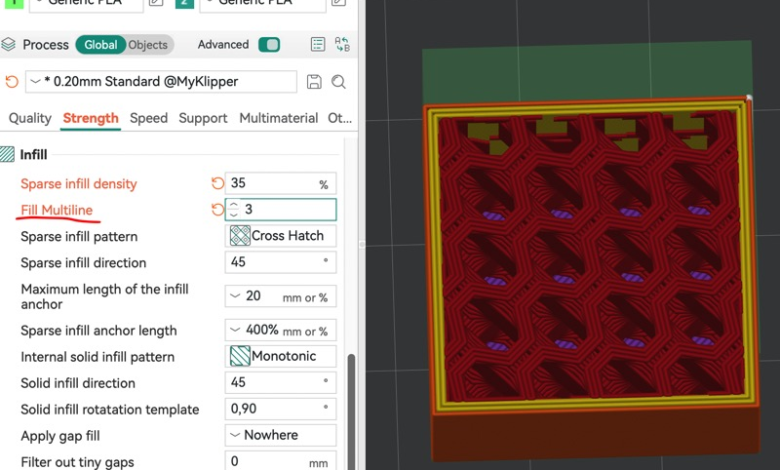
- Infill Density:
- This setting controls how much material is used inside the object.
- Best Practice: Use 20% for standard objects, and increase if more strength is needed.
- Infill Pattern:
- Choose between patterns like Grid, Honeycomb, or Triangular, depending on your object’s purpose.
- Best Practice: Honeycomb is great for balancing strength and material usage.
- Supports:
- Some models need support structures to ensure overhangs don’t collapse during printing.
- You can choose from different support styles, including grid, tree, or line supports.
- Best Practice: Use Tree Supports for organic shapes.
Advanced Settings
If you’re looking to fine-tune your prints simple firs you read this guide, Orca Slicer has several advanced settings that let you control every aspect of the printing process.
Retraction Settings
Retraction prevents stringing (extra filament extruding when moving between parts). You can adjust the retraction distance and speed based on the filament used.
- Retraction Distance: Typically set to 4mm for Bowden extruders and 1mm for direct drive extruders.
- Retraction Speed: Around 25mm/s is a good starting point.
Temperature Settings
Temperature plays a key role in print adhesion and quality. Orca Slicer allows you to set the extruder and heated bed temperatures.
- Extruder Temperature: Typically, PLA is printed at 190-220°C.
- Heated Bed Temperature: 60-70°C for PLA, 100-110°C for ABS.
Acceleration and Jerk Settings
These settings control how quickly the printer accelerates and changes direction. Adjusting these settings helps reduce print artifacts like ringing and ghosting.
- Acceleration: 1000-1500mm/s²
- Jerk: 5-10mm/s (this will depend on your printer and the material).
Optimizing for Print Quality
Achieving the best print quality requires balancing all of these settings. Here are a few tips to help you get the highest quality prints with Orca Slicer:
1. Fine-Tune Layer Heights:
- Use smaller layer heights for detailed models, especially when printing miniatures or intricate designs.
2. Adjust Print Speeds:
- Slower speeds (30-40mm/s) improve print quality, especially for intricate parts.
3. Use a Heated Bed:
- A heated bed helps reduce warping by maintaining adhesion to the print surface.
4. Experiment with Infill:
- A higher infill percentage is ideal for strong parts, but it increases print time. Experiment with different patterns and densities to find the best combination.
Troubleshooting Common Issues
Even with perfect settings, issues can arise during printing. Let’s look at some common problems and how to fix them.
1. Warping:
- Solution: Increase the bed temperature and use a heated bed mat.
2. Stringing:
- Solution: Adjust retraction distance and speed.
3. Layer Shifting:
- Solution: Reduce print speed and ensure the printer is properly calibrated.
4. Overheating:
- Solution: Reduce the extruder temperature or speed.
Conclusion
Orca Slicer offers a wide range of settings and options to fine-tune your 3D printing experience. From basic print settings to advanced configurations, understanding each setting allows you to optimize your prints for both quality and efficiency. By experimenting with different settings and finding the perfect balance, you can get the best results from your 3D printer.
More Setting Wiki Github
FAQs
1. What is the optimal layer height for my 3D prints in Orca Slicer?
The optimal layer height is typically 0.2mm for most prints, balancing quality and speed. For finer details, use 0.1mm.
2. How do I adjust the print speed in Orca Slicer for better results?
Start with a default speed of 50mm/s, and for better quality, use slower speeds like 30-40mm/s. Faster speeds may reduce detail.
3. Why is my 3D print warping, and how can I prevent it using Orca Slicer?
Warping can be prevented by increasing the bed temperature and using a heated bed. Adding a brim or raft also helps.
4. How do I set up supports for overhangs in Orca Slicer?
Enable supports in the slicer settings and choose grid or tree supports depending on your model. Tree supports are better for complex shapes.
5. What is the best retraction setting to avoid stringing in Orca Slicer?
Set retraction distance to 4mm for Bowden extruders and 1mm for direct-drive. Use a retraction speed of 25mm/s.