Fix Error Code 0xc0000005 in Windows 11/10 | Complete Guide for Windows Data Recovery
You have encountered error code 0xc0000005 and don’t know how to resolve the issue where an application has crashed or Windows cannot open an application properly without any reason? The “Access Violation” is mostly experienced on Windows 11 and 10 across all scenarios, and in some instances, it can even result in data loss or corrupt files.
The positive side is that there are ways to fix this issue; in most cases. Here you are going to learn what it means when Error Code 0xc0000005 is occurring, how you can safely troubleshoot the error, and how to retrieve important files if the error has impacted your data.
Let’s get started.
Part 1: What Is Error Code 0xc0000005 in Windows?
The Error code 0xc0000005 is frequently faced by Windows users and also a common error which is referred as “Access Violation Error.” It typically shows up when a program attempts to access files, memory or system locations without authorization. At this time, Windows will stop this action and show the error to clear other problems of the system.
In certain cases, this mistake can make applications not even to start or make them crash randomly, and in rare cases it can even cause instabilities. It’s a common Windows 10 or Windows 11 problem that can occur when you start games, any application or even on startup.
It can occur sporadically for some users after updates, drivers, or app installing, whereas others users might get these errors frequently.
The most often recurring error messages are:
- “The application was unable to start correctly (0xc0000005)”
- “Access violation at location…”
- “Windows installation encountered an unexpected error: 0xc0000005”
Even if the message appears to be serious, it is probably related to some problems with corrupted system files, memory or software conflicts/conflicts that can be resolved with the appropriate troubleshooting steps.
Part 2: What Causes Error Code 0xc0000005 in Windows?
Error code 0xc0000005 is typically the signature of a Windows or app failure to access needed memory or system resources. This error in Windows 10 and Windows 11 could be caused by various reasons.
Corrupted System Files
The error could be caused by applications that cannot start up because of damaged or missing Windows files.
Faulty RAM (Memory Issues)
If a RAM module has corruption, when running programs, it can cause programs to crash, fail to start up, or cause an access violation error.
Malware or Virus Infection
Malware may corrupt system files or disrupt Windows processes or operation, causing errors in applications.
Incorrect Registry Entries
Corrupted registry settings can lead to software conflicts and can cause programs to misbehave and stop running.
When the Driver is Incompatible/Unworthy or Outdated
If the driver for parts is old or incompatible it can help to destabilize the system, particularly following Windows updates.
DEP (Data Execution Prevention) Conflicts
Certain applications may have conflicts and not work properly with DEP security settings.
Windows Update Issues
Sometimes error code 0xc0000005 occurs because of failed or incomplete Windows updates.
Part 3: When Error 0xc0000005 Leads to Data Loss
In some situations, error code 0xc0000005 can do more than just crash an application. Repeated system failures, startup issues, or failed repair attempts may lead to corrupted or inaccessible files.
When Does Data Loss Occur?
Data loss usually happens when the system crashes while files are being saved, updated, or transferred. In severe cases, Windows may fail to boot properly, making important files inaccessible.
Common situations include:
- System crashes during the error
- File corruption after repeated startup failures
- Failed fixes such as Windows reset or reinstallation
- Disk repair tools affecting damaged sectors
- Accidental deletion during troubleshooting
As a result, users may lose access to documents, photos, videos, or other important files.
Why Recovery Should Come First
Before using advanced fixes like System Restore, CHKDSK, or Reset Windows, it is safer to recover important files first. Some repair methods may overwrite existing data and make recovery more difficult later.
Recovering files beforehand helps:
- Prevent permanent data loss
- Protect important personal or work files
- Reduce the risk of overwriting data
- Make troubleshooting safer
If your files are not backed up, using a Windows data recovery solution before applying major fixes is often the safest approach.
Part 4: Best Solution – Windows Data Recovery Before Fixing
Before applying advanced fixes for error code 0xc0000005, it is highly recommended to recover important files first. Some repair methods, such as System Restore, Windows Reset, or disk repair commands, can sometimes make file recovery more difficult if data gets overwritten during the process.
When to Use Windows Data Recovery
You should consider using a Windows data recovery tool in the following situations:
- Before performing System Restore or Reset Windows
- If files have become corrupted or inaccessible due to the error
- If your system crashes repeatedly during startup
- If important files are not backed up anywhere else
- If you accidentally lost files while troubleshooting the issue
Recovering your data first gives you peace of mind and allows you to troubleshoot the system more safely.
Professional Tool Recommendation – 4DDiG Windows Data Recovery
One useful solution for Windows Data Recovery After Error 0xc0000005 is 4DDiG Windows Data Recovery. The software is designed to recover lost, deleted, corrupted, or inaccessible files from different types of storage devices.
It can be especially helpful if the error caused system crashes, boot issues, or file corruption.
Key Features of 4DDiG Windows Data Recovery
- Recover data after system errors like 0xc0000005
- Supports crashed, corrupted, or inaccessible Windows systems
- Works with HDDs, SSDs, USB drives, SD cards, and external storage devices
- Recovers documents, videos, photos, audio files, and more than 2000 file types
- Allows free scanning and preview before recovery
- Simple interface suitable for both beginners and advanced users
Step-by-Step Guide to Recover Files
Here’s how to recover data after Windows crash:
Step 1: Install and Launch the Software
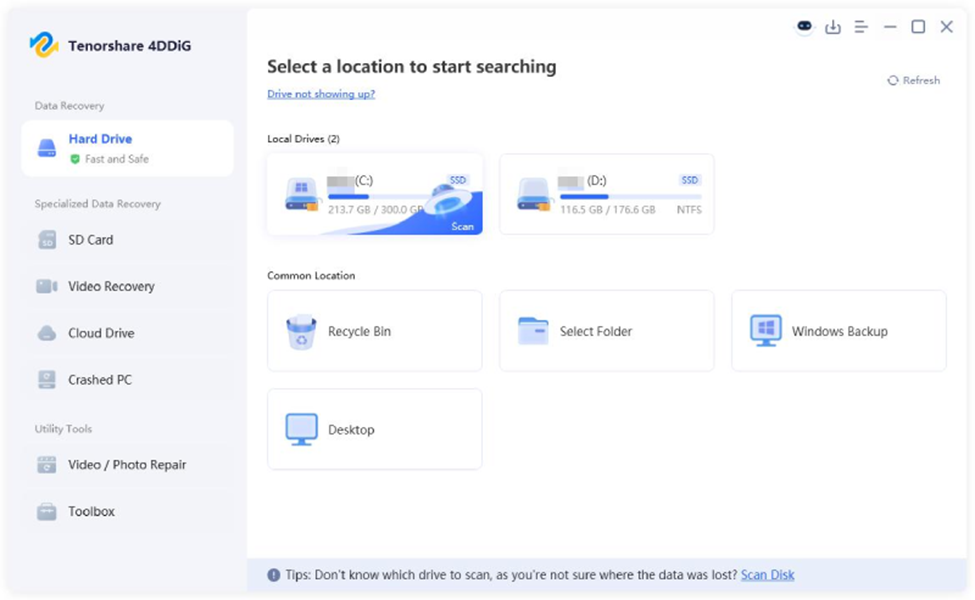
Download and install 4DDiG Windows Data Recovery on your computer. After launching the program, you will see all available drives and storage locations on the main screen.
Step 2: Select the Affected Drive
Choose the drive or partition where your files were lost or became inaccessible because of the error. Then click the Scan button to start searching for recoverable files.
Step 3: Scan for Lost or Corrupted Files
The software will begin scanning the selected drive for deleted, corrupted, or inaccessible files. Depending on the drive size and file count, the process may take a few minutes.
During the scan, you can filter results by file type, such as photos, videos, documents, or audio files.
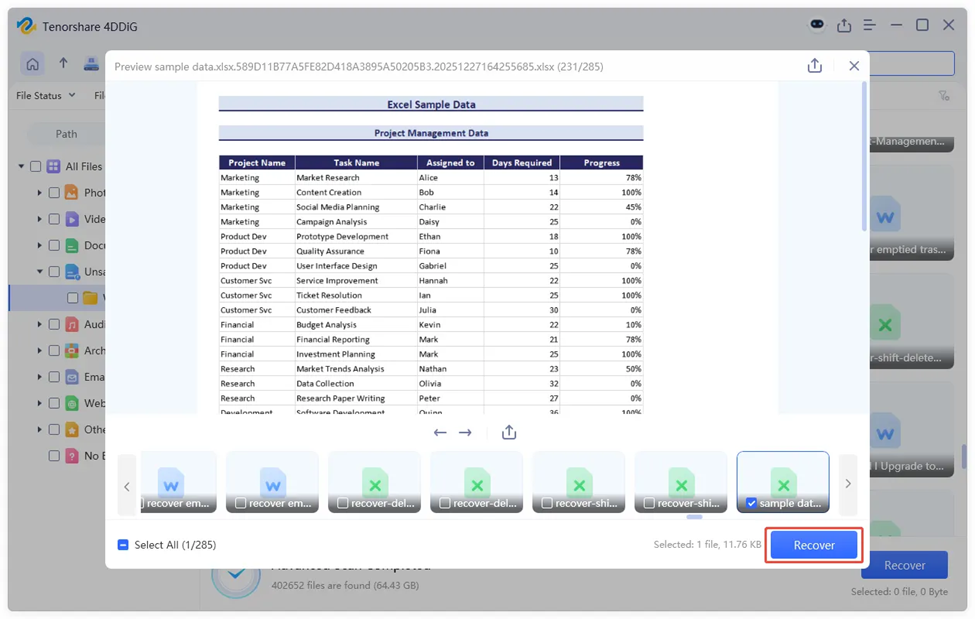
Step 4: Preview Recoverable Data
Once the scan is complete, preview the recoverable files to verify their condition before restoring them. This helps ensure you recover the correct files.
Step 5: Recover Files to a Safe Location
Select the files you want to recover and save them to a different drive or external storage location. Avoid restoring files to the same affected drive to reduce the risk of overwriting data.
Part 5: How to Fix Error Code 0xc0000005 in Windows 11/10
After recovering your important files, you can start troubleshooting the error safely. Below are some of the most effective methods to fix error code 0xc0000005 in Windows 10 and Windows 11.
Fix 1: Restart Your PC
Sometimes the error is caused by temporary system glitches or background process conflicts. A simple restart can refresh Windows processes and remove temporary issues affecting applications.
To restart your computer:
- Click the Start menu
- Select the Power icon
- Click Restart
After the system reboots, try opening the affected application again to see if the issue has been resolved.
Fix 2: Run System File Checker (SFC Scan)
Corrupted or missing system files are one of the most common reasons behind error code 0xc0000005. Running the System File Checker tool can help repair damaged Windows files automatically.
Follow these steps:
- Type “Command Prompt” in Windows Search
- Right-click it and select “Run as administrator”
- Enter the following command:
sfc /scannow
- Press Enter and wait for the scan to complete
The process may take several minutes. Once finished, restart your computer and check whether the error still appears.
Fix 3: Check Disk Errors (CHKDSK)
Disk-related problems such as bad sectors or file system corruption can also trigger access violation errors. Running the CHKDSK utility helps identify and repair disk issues.
Before running disk repair tools, make sure important files are already backed up or recovered because repairs on damaged drives may sometimes affect existing data.
Here’s how to run CHKDSK:
- Open Command Prompt as administrator
- Type the following command:
chkdsk C: /f /r
- Press Enter
- Restart your PC if Windows asks to schedule the scan
The tool will scan your drive for errors and attempt to repair them automatically.
Fix 4: Disable Data Execution Prevention (DEP)
Data Execution Prevention (DEP) is a built-in Windows security feature that protects your system from harmful code execution. However, some applications may conflict with DEP and trigger the 0xc0000005 error.
You can temporarily disable DEP for a specific application by following these steps:
- Open Control Panel
- Go to System and Security > System
- Click Advanced system settings
- Under the Performance section, click Settings
- Open the “Data Execution Prevention” tab
- Select “Turn on DEP for all programs except those I select”
- Add the problematic application
- Click Apply and restart your PC
Avoid disabling DEP completely for all programs, as it helps protect your system against security threats.
Fix 5: Reinstall or Update the Problematic Application
If the error only appears while opening a specific program or game, the application itself may be corrupted or outdated.
Try reinstalling the software:
- Open Settings > Apps
- Find the problematic application
- Click Uninstall
- Restart your computer
- Download and install the latest version from the official website
This can help remove corrupted program files and compatibility issues.
Fix 6: Update Windows and Drivers
Outdated Windows components or drivers can create compatibility problems that lead to application crashes and access violation errors.
To update Windows:
- Open Settings
- Go to Windows Update
- Click “Check for updates”
- Install all available updates
You should also update important drivers, especially:
- Graphics drivers
- Storage drivers
- Chipset drivers
Keeping your system updated helps fix known bugs and improves overall stability.
Fix 7: Scan for Malware or Virus
Malware infections can damage system files, modify registry settings, and interfere with normal Windows operations. Running a full virus scan may help remove malicious programs causing the error.
You can use Windows Security:
- Open Windows Security
- Go to Virus & Threat Protection
- Select Scan Options
- Run a Full Scan
You may also use a trusted third-party antivirus tool for additional protection.
Fix 8: Check RAM Issues
Faulty RAM is another common cause of error code 0xc0000005. Since applications rely heavily on system memory, damaged RAM modules can lead to crashes and access violations.
Windows includes a built-in memory diagnostic tool:
- Type “Windows Memory Diagnostic” in Search
- Open the tool
- Select “Restart now and check for problems”
Your system will restart and scan the RAM for errors automatically.
If memory problems are detected repeatedly, you may need to reseat or replace the faulty RAM module.
Part 6: Advanced Fixes (If Error Persists)
If error code 0xc0000005 still appears after trying the previous methods, you may need to use advanced recovery options. These solutions can help restore system stability, but they should be used carefully because major system changes may affect installed programs or files.
Before proceeding, make sure your important data has already been backed up or recovered.
Method 1: Perform System Restore
System Restore allows you to return Windows to a previous working state without affecting most personal files. This can help if the error started appearing after a recent update, driver installation, or software change.
Follow these steps:
- Type “Create a restore point” in Windows Search
- Open System Properties
- Click the System Restore button
- Choose a restore point created before the error started
- Follow the on-screen instructions to complete the process
Your computer will restart automatically during restoration.
Once the process finishes, check whether the 0xc0000005 error has been resolved.
Method 2: Reset Windows
If the problem continues and the system becomes unstable, resetting Windows may help repair deeper system corruption. This method reinstalls Windows while giving you the option to keep personal files.
However, installed applications and custom settings may still be removed, so this should only be used as a last resort.
To reset Windows:
- Open Settings
- Go to System > Recovery
- Click “Reset this PC”
- Select “Keep my files”
- Follow the on-screen instructions
The reset process may take some time depending on your system speed and storage size.
After Windows finishes reinstalling, install updates and drivers again, then check if the issue is fixed.
Part 7: Tips to Prevent Error Code 0xc0000005
Preventing error code 0xc0000005 is often easier than fixing it later. A few simple maintenance habits can help keep your Windows system stable and reduce the risk of crashes or data loss.
Keep Windows Updated
Regular Windows updates help fix bugs, improve security, and prevent compatibility issues.
Avoid Installing Untrusted Software
Only download programs from trusted or official websites to reduce the risk of malware or corrupted files.
Regularly Scan for Malware
Use Windows Defender or a reliable antivirus tool to scan your system and remove potential threats.
Back Up Important Data Frequently
Create regular backups of important files using:
- External hard drives
- Cloud storage
- Backup software
Maintain Healthy Disk and RAM
Check your storage drive and RAM regularly to detect hardware problems before they cause system errors.
Final Words
Error code 0xc0000005 can be triggered by corrupted files, memory problems, malware, or software conflicts. While fixing the error is important, protecting your files before applying major system changes is equally important.
Some repair methods, such as system reset or disk repair, may increase the risk of permanent data loss if recovery is not performed first. That is why using a Windows Data Recovery solution before advanced troubleshooting is often the safest option.
A reliable tool like 4DDiG Windows Data Recovery can help recover lost or inaccessible files from crashed or corrupted systems, allowing you to troubleshoot error code 0xc0000005 more safely and confidently.