Why Multi-Account Teams Use Morelogin Antidetect Browsers and Cloud Phones
Managing multiple online accounts used to be a browser problem. A small team could open several tabs, save a few passwords, and switch between accounts when needed. That worked when most work happened on websites. It does not work as well now.
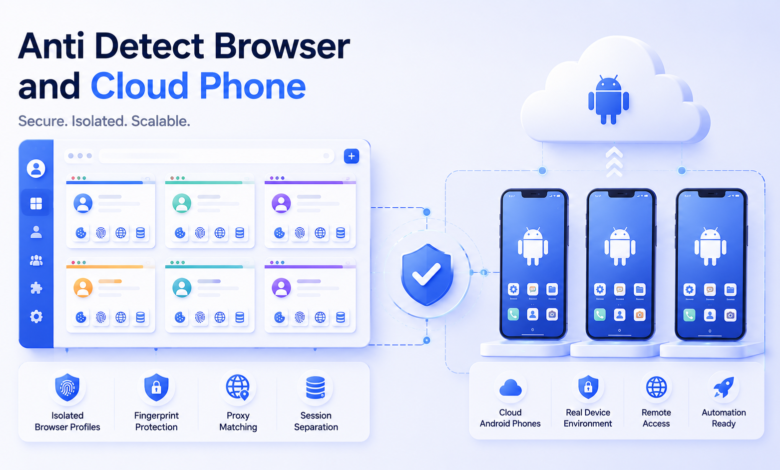
Many teams no longer operate only in web dashboards. They also need mobile apps, regional app checks, client accounts, marketplace apps, support tools, and team-based access control. A social media team may need both desktop dashboards and app-native actions. An ecommerce team may work across seller portals, buyer accounts, and mobile marketplace apps. An agency may handle different client environments across regions and platforms. This is why more teams are no longer looking at anti detect browsers and cloud phones as separate tools. They are starting to use them as one combined stack. An anti detect browser handles the web side of multi-account work. A cloud phone handles the mobile app side. Together, they help teams build cleaner, more reusable, and easier-to-manage account environments.
What Is an Anti detect Browser?
An anti detect browser is a browser environment designed for account separation.
Instead of keeping every login inside one local browser, users create separate browser profiles for different accounts, projects, clients, teams, or regions. Each profile can keep its own cookies, local storage, browser settings, proxy configuration, and login state.
For teams, the real value is not only privacy. It is operational structure.
A good anti detect browser helps teams:
- Create separate browser profiles for different accounts
- Keep cookies and sessions isolated
- Match each profile with the right proxy settings
- Assign profiles to different team members
- Control who can open, edit, or manage each profile
- Reduce confusion between accounts and projects
- Support repeated browser workflows from one dashboard
This makes the anti detect browser the main workspace for web-based account management.
For example, a team may use separate profiles for client dashboards, ecommerce stores, social media accounts, ad platforms, affiliate accounts, or internal testing environments. Each profile becomes a reusable workspace instead of a temporary login session.
What Is a Cloud Phone?
A cloud phone is a cloud-hosted Android environment that users can access remotely.
Instead of buying and maintaining many physical phones, teams can run mobile app workflows through Android environments in the cloud. This is useful because many modern platforms are not browser-only. Some tasks work better, or only work, inside mobile apps.
Physical phones can work for a small team. But they become difficult to manage when the number of accounts, apps, regions, or team members grows.
Common problems include:
- Buying and replacing many devices
- Charging and labeling phones
- Passing devices between team members
- Reinstalling apps again and again
- Managing storage limits
- Losing track of which phone belongs to which account
- Keeping device access under team control
Cloud phones reduce that hardware burden. Teams can create mobile environments, install apps, assign access, and manage mobile workflows without keeping a cabinet full of physical devices.
For mobile-first operations, a cloud phone becomes the mobile side of the account stack.
Why One Tool Is Often Not Enough
Many teams start with one tool because their first problem looks simple.
A web-focused team may start with an anti detect browser. Later, they find that some workflows need mobile apps.
A mobile-focused team may start with physical phones or Android emulators. Later, they realize they also need browser profiles, proxy settings, team permissions, and web dashboards.
The issue is that modern account work is often split across both environments.
| Workflow need | Better fit | Why it matters |
| Web account login | Anti detect browser | Keeps browser profiles, cookies, sessions, and proxy settings separated |
| Mobile app access | Cloud phone | Supports app-based workflows without physical device management |
| Team assignment | Both | Helps managers control who can access which environments |
| Repeated tasks | Both | Makes setup, maintenance, and routine actions easier to repeat |
| Regional workflows | Both | Helps teams organize account environments by market or location |
| Long-term account management | Both | Keeps web and mobile sessions structured over time |
This is why the combination is becoming more useful. The browser covers desktop and web-based work. The cloud phone covers Android app workflows. The team gets a more complete operating setup.
How Anti detect Browsers and Cloud Phones Work Together
The simplest way to think about it is this:
An anti detect browser manages the web environment.
A cloud phone manages the mobile environment.
A team may use browser profiles for account settings, dashboards, reporting tools, seller portals, ad platforms, and admin panels. At the same time, the same team may use cloud phones for mobile app logins, app-based posting, app testing, regional app checks, or customer support inside mobile apps.
When both tools are part of the same workflow, teams do not need to rely on scattered systems.
Without a combined setup, work often gets split across browsers, phones, emulators, spreadsheets, proxy notes, password managers, and chat messages. That can work for a small team, but it becomes messy when more people join.
With a more organized setup, managers can assign account environments, revoke access when needed, keep work assets inside the team, and reduce the risk of losing track of account ownership.
At that point, the tool is no longer just a browser or a phone. It becomes part of the team’s account operation system.
Common Use Cases
Social Media Operations
Social media work often happens across both web and mobile.
A team may use web dashboards for planning, reporting, inbox management, content review, and account settings. At the same time, mobile apps may still be needed for app-native actions, mobile checks, or market-specific workflows.
An anti detect browser helps separate web profiles for different brands, accounts, or clients. A cloud phone adds mobile app access without requiring every account to sit on a separate physical phone.
This setup is useful for teams managing multiple brands, markets, or client accounts.
Ecommerce and Marketplace Teams
Ecommerce teams often work across seller dashboards, buyer accounts, regional marketplaces, support tools, and mobile apps.
Some tasks are easier on desktop. Others are tied to mobile apps. A browser-only setup may not cover the full workflow. A phone-only setup can become hard to organize when web dashboards and team permissions are also needed.
A combined stack lets the browser side handle web management while the cloud phone side handles mobile access.
This can help teams keep stores, regions, and account roles more clearly separated.
Agencies and Affiliate Teams
Agencies and affiliate teams often manage multiple clients, campaigns, regions, or traffic sources.
They need clear separation between projects. They also need better control over who can access which accounts. When this is handled through personal devices or shared browsers, work can quickly become disorganized.
An anti detect browser can separate web environments by client, project, or campaign. A cloud phone can add mobile environments for app-based work.
Together, they make the workflow easier to assign, review, and scale.
App Testing and Regional Checks
Some teams need to check how apps, websites, or account flows behave across regions, devices, or user environments.
A cloud phone is useful for mobile app checks. An anti detect browser supports web-based dashboards, login flows, and account management.
This gives teams a more complete setup for cross-platform review work.
Customer Support and Operations
Some support teams need access to both web portals and mobile apps.
With separate browser profiles and cloud phones, teams can avoid messy device sharing. They can keep different accounts, regions, or support workflows in separate environments.
This is especially useful when access needs to be assigned, limited, or removed as the team changes.
What to Look for in a Combined Setup
Not every anti detect browser or cloud phone platform is built for real team operations. Some tools are useful for individual users but become difficult to manage when the workflow grows.
Here are the main features teams should look for.
1. Reusable Environments
The setup should support reusable browser profiles and reusable mobile environments.
Most account workflows are not one-time tasks. Teams need to return to the same profile or mobile environment again and again. Reusable environments make that possible.
2. Team Permission Management
Permissions matter when multiple people are involved.
Managers should be able to assign environments, limit access, and remove access when a person leaves a project. Without this, account assets can end up scattered across personal devices or private workspaces.
3. Proxy and Region Settings
Many teams organize work by region, platform, or client.
A useful setup should make proxy and region configuration easier to manage. The goal is to keep account environments consistent instead of relying on manual notes or separate spreadsheets.
4. Batch Operations
When the number of accounts grows, one-by-one setup becomes inefficient.
Batch creation, batch editing, app installation, import tools, and repeated workflow controls can save time. They also reduce small mistakes during setup.
5. Automation Support
Advanced teams often need automation for repeated tasks.
This may include browser automation, mobile task automation, API access, RPA workflows, or developer controls. The goal is not to remove human review. The goal is to reduce repetitive manual work and keep operations consistent.
6. Long-Term Scalability
The cheapest setup is not always the most practical one.
If a tool becomes messy when the team grows, the real cost increases. A better stack should stay organized as more accounts, mobile environments, team members, and workflows are added.
Where MoreLogin Fits In
MoreLogin fits this workflow because it brings anti detect browser profiles and cloud phone environments into one broader account management system.
On the browser side, MoreLogin helps teams create separated profiles for web-based accounts. Each profile can keep its own login state, cookies, storage, fingerprint settings, and proxy configuration. This makes it easier to manage different accounts without mixing sessions in one local browser.
On the mobile side, MoreLogin Cloud Phone gives teams access to cloud-based Android environments. Instead of buying and maintaining many physical phones, users can run mobile app workflows through cloud phones and manage them from a central platform.
The stronger value is the combined workflow.
Teams can use MoreLogin to:
- Manage browser profiles for web accounts
- Run cloud phones for mobile app workflows
- Assign environments to team members
- Keep accounts separated by project, client, or region
- Use batch operations for repeated setup work
- Support more advanced workflows through automation tools
- Reduce dependence on physical mobile devices
This makes MoreLogin a practical option for teams that need more than a simple browser profile tool or a basic virtual phone. It is better suited for workflows where web access, mobile app access, team control, and repeatable operations all matter.
Anti detect Browser vs Cloud Phone: Do You Need Both?
Not every team needs both tools from the beginning.
If most of your work happens in web dashboards, an anti detect browser may be enough at first. If most of your work happens inside Android apps, a cloud phone may be the first priority.
But once your workflow includes both web accounts and mobile app operations, using both together becomes more practical.
| Situation | Suggested setup |
| Mostly web dashboards and browser logins | Anti detect browser |
| Mostly mobile app workflows | Cloud phone |
| Web accounts plus mobile app access | Anti detect browser + cloud phone |
| Team-based multi-account work | Combined setup with permissions |
| Repeated large-scale tasks | Combined setup with automation |
The key is to match the tool stack to the actual workflow.
A browser-only setup can feel limited when mobile apps become important. A phone-only setup can feel messy when web dashboards, profile management, and team permissions become part of daily work.
Final Thoughts
Multi-account work is no longer limited to browser tabs.
Many teams now operate across websites, mobile apps, regions, client accounts, and internal roles. That makes the old setup of local browsers and physical phones harder to manage over time.
An anti detect browser gives teams cleaner control over web-based accounts. A cloud phone gives teams a more scalable way to handle mobile app workflows. Used together, they create a more complete setup for teams that need both sides of the environment.
For teams looking for one platform that connects these needs, MoreLogin is worth considering. Its anti detect browser helps organize web profiles, while MoreLogin Cloud Phone supports cloud-based Android workflows. For multi-account teams, that combination can reduce hardware friction and make daily operations easier to manage.