MultCloud: The Best Method to Transfer Dropbox to Google Drive in Minutes
Cloud storage is part of our daily work. People don’t keep files on one computer anymore, they save documents, photos, videos and project files in the cloud so they’re accessible from anywhere. It’s also common to collaborate with colleagues, clients or classmates using shared folders rather than sending files back and forth through email.
With the explosion of digital content, many users are now using more than one cloud storage service. A lot of users begin with Dropbox for the easy sharing, but eventually move to Google Drive because they’re already using Gmail or Workspace. Files get scattered across both services, and keeping everything organized quickly turns into a mess.
Why Transfer Dropbox to Google Drive?
This is one of the main reasons people look for ways to transfer Dropbox to Google Drive. When your data is split across multiple cloud accounts, you’re stuck jumping from one service to another all the time. Sending all of your data into one unified platform speeds up file lookup, edits and outbound sharing tasks. Below are the key reasons users transfer their Dropbox files over to Google Drive.
Smoother Synergy Across Google Workspace
For anyone who sticks to Gmail and Google Meet to get daily tasks done, housing your entire file collection on Drive creates a far more fluid working experience. Centralized storage removes the need to switch multiple platforms whenever you open files, make edits or send items to others.
Maintain Order for All Your Files
It does not take long for your file library to become jumbled once you split data among different cloud storage accounts. Moving everything into Google Drive can help reduce duplicate files, outdated copies, and time spent looking for what you need.
Save on Storage Costs
You don’t always need to pay for two cloud storage services. If you have an active paid Google Workspace storage subscription, shifting your Dropbox files over lets you fully utilize this existing storage quota instead of letting it go unused.
Easier Team File Migration
As many businesses’ needs change, they move from Dropbox to Google Workspace. Moving shared folders, project files and team documents is much quicker when done all at once, rather than moving them individually.
Important Things to Know Before Transferring Dropbox to Google Drive
Before starting a Dropbox to Google Drive transfer, it’s worth taking a few minutes to prepare your accounts and files. Although cloud-to-cloud migration is much easier than downloading and uploading everything manually, a little preparation can help avoid unexpected issues such as insufficient storage, missing permissions, or incomplete transfers.
- Check your Google Drive has enough free space for everything you’re moving.
- Delete any unneeded files from Dropbox, which can speed up the transfer and keep your files organized.
- Make sure you have access to all folders you’re migrating, especially shared files from a business account.
- Test a small folder first to confirm your files open properly after they land in Drive.
How to Transfer Dropbox to Google Drive with MultCloud
The go-to fix most people think of for cross-cloud data transfer is downloading Dropbox content locally before uploading everything to Google Drive. This manual workflow handles small file loads with ease, but it is far from practical for massive folder archives and large quantities of individual files. You need sufficient spare storage on your PC to hold the temporary files, your network connection dictates the transfer pace, and the whole job often winds up taking an unnecessarily long while to wrap up.
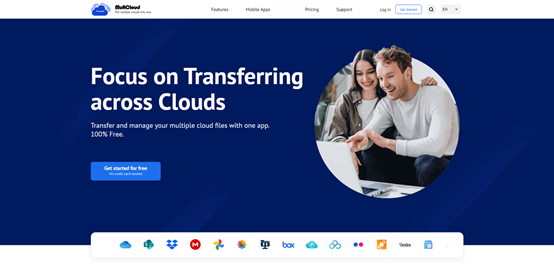
If you want a hassle-free way to move content between your Dropbox and Google Drive accounts, MultCloud — the multiple cloud management platform is a solid pick for direct cross-cloud transfers. Every file transfer task runs over the web directly through this tool, cutting out the extra step of downloading files to your local machine then reuploading them manually. Since data moves from one cloud server to another remotely, local downloads become unnecessary, and your equipment can stay powered off or idle while the migration task proceeds automatically.
Why Choose MultCloud for File Transfer
Direct Cloud-to-Cloud Transfer: It sends data straight between Dropbox and Google Drive, so you never have to download these files onto your local PC as an intermediate step.
- Move files directly from Dropbox to Google Drive, so you never have to download anything to your computer first.
- The transfer keeps running on MultCloud’s servers, meaning you can close your browser or turn off your computer after you start it.
- You can schedule transfers to run automatically at whatever time works best for you.
- Beyond Dropbox and Drive, it works with over 30 other cloud platforms, so you can manage everything from one place.
- MultCloud uses OAuth for authorization, so you never have to give up your actual account password.
Steps to Transfer Dropbox to Google Drive with MultCloud
Step 1. Register at MultCloud
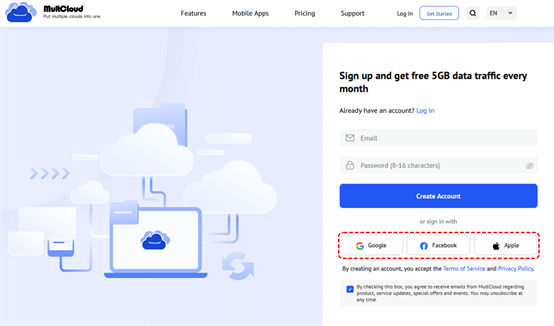
Go to the MultCloud website and sign up for a free account using your email. After registering, log in and go to the dashboard.
Step 2. Connect Dropbox and Google Drive
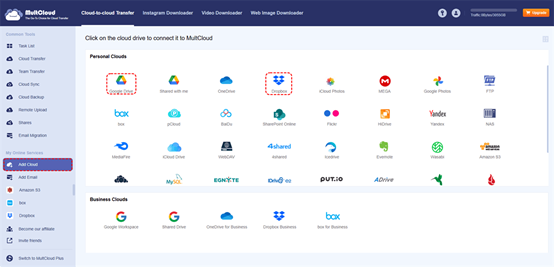
In the left sidebar, click on “Add Clouds and Emails” and select Dropbox from the list of supported clouds. Authorize MultCloud to connect to your Dropbox account. Repeat the same steps for Google Drive.
Step 3. Choose Cloud Transfer
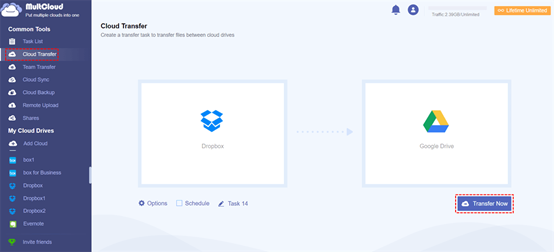
Select “Cloud Transfer” on the MultCloud dashboard. Select files or folders in Dropbox as your source and Google Drive as your destination.
Step 4. Customize Transfer Settings
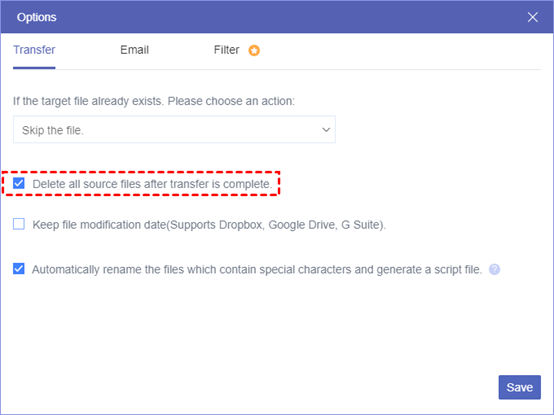
There are optional settings which you can change depending on your needs: keep file modification dates, receive email notifications, filter certain files, or delete files from Dropbox once the transfer is finished.
Step 5. Start Transfer
Click “Transfer Now” to begin the migration process. Once the transfer is complete, open your Google Drive account and review the migrated files. Check important folders, file structures, and key documents to make sure everything has been transferred successfully.
Conclusion
Whether you are transferring personal files, reorganizing your cloud storage or migrating business data, picking the right transfer method will save you a lot of time and effort. MultCloud offers a handy solution to get the migration done with less manual steps. Apart from Cloud Transfer, it can also help users to sync files between cloud services, back up important data, and manage multiple storage platforms without switching between different accounts all the time.