Where Content Creators Find Platforms With One-Click Edits for YouTube Channel Banners
Building a YouTube channel takes enough work on its own without spending hours in design software every time your banner needs a refresh. Content creators need tools that are fast, flexible, and built for YouTube channel art specifically, not general-purpose editors that require design experience. Platforms with one-click editing have made professional banner creation genuinely accessible, letting creators focus on content while still showing up with a polished visual presence. This article walks through what those platforms offer, how to evaluate them, and how to get the best results from them.
What One-Click Editing Actually Means for YouTube Banners
The phrase “one-click editing” means different things across different platforms, so it is worth understanding what to look for before committing to a tool. In the context of YouTube channel banner design, true one-click functionality refers to the ability to apply sweeping changes to a template in a single action, such as swapping a color theme or switching an image treatment across the whole design, without manually adjusting each element.
At its best, one-click editing works like a style layer over a professionally built layout. The structure, hierarchy, and proportions remain intact while the visual content updates instantly. This is especially valuable for creators who update banners frequently or manage channels across multiple content areas, because it compresses a multi-step process into seconds.
The platforms that do this well pre-load templates with smart placeholder logic so each editable zone applies formatting automatically. They also offer style presets delivering coordinated color, font, and layout decisions in one action. Knowing what these features look like helps you avoid platforms that market themselves as one-click tools but still require considerable manual work.
How to Evaluate a YouTube Banner Platform Before You Invest Time in It
Choosing a banner platform affects your workflow for as long as you use it. Switching later means rebuilding your brand assets from scratch, so getting the evaluation right upfront matters. Here is what to check before committing:
- Does the platform include YouTube-specific templates at the correct dimensions (2560 x 1440 pixels)?
- Are one-click style presets available on the free tier, or locked behind a subscription?
- Does the platform show a mobile-safe zone overlay so you know what will be visible on different devices?
- Can you save your project in an editable format for future updates?
- Is there a built-in asset library with licensed images and graphics?
- What export options are available, and do they meet YouTube’s upload requirements?
A platform that passes all of these checks is worth learning. One that falls short on dimensions, mobile-safe zone guidance, or export quality will likely frustrate you at the moment you go to publish.
10 Tips for Getting the Most From One-Click YouTube Banner Editors
1. Set Up a Brand Kit Before You Open Any Template
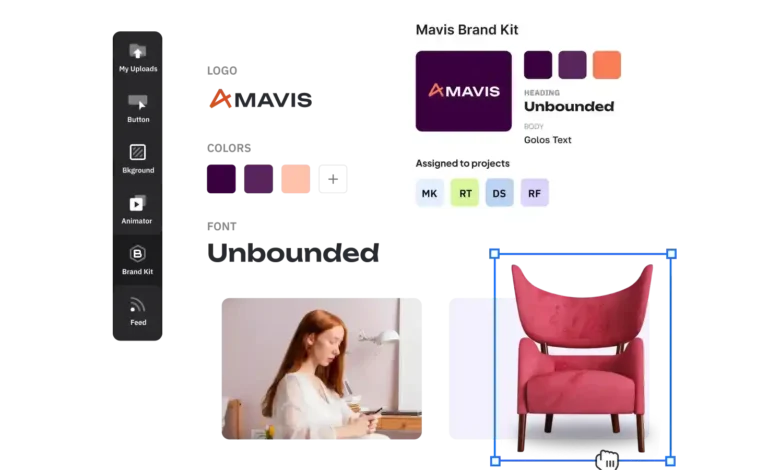
The single best investment before designing a YouTube channel banner is five minutes defining your brand kit: primary and accent colors as specific hex values, preferred fonts, and any logo or watermark files you use consistently. Most quality banner platforms allow you to save this directly in your account settings.
Once your brand kit is in place, one-click editing becomes genuinely powerful. Rather than re-entering hex values or hunting for the right font with each update, the platform applies your brand assets automatically when you swap templates or apply a new style preset. This is the foundation that makes one-click functionality feel effortless rather than a slightly shorter version of manual work.
2. Use Adobe Express for Streamlined One-Click YouTube Banner Design
For content creators who want a platform that combines one-click editing with professional template quality, Adobe Express is one of the most capable free options available. The YouTube banner section of Adobe Express includes a dedicated library of channel art templates sized precisely to YouTube’s specifications, with one-click style swapping that updates colors, fonts, and image treatments across the entire design simultaneously.
Beyond the template library, Adobe Express integrates a licensed stock image collection directly into the editing experience, so you can replace placeholder photos without leaving the tool. The free tier provides access to core features including template customization, text editing, and high-resolution export without a watermark. For creators who update banners regularly or manage multiple channels, cloud-saved editable project files make it a practical long-term workflow tool.
3. Understand the Difference Between Style Presets and Manual Customization
One of the fastest ways to produce a polished banner is knowing when to use style presets versus when to customize manually. Style presets are pre-built combinations of color palette, font pairing, and layout treatment that transform the entire aesthetic in one action. They are most useful when exploring different looks before committing to a direction.
Manual customization is the process of adjusting individual elements after a preset has been applied. Use presets first to reach a strong starting point quickly, then switch to manual controls to finalize specifics like exact hex values, font sizes, and text positioning. Treating these as two distinct phases keeps the workflow efficient and prevents getting lost in minor details before the overall direction is decided.
4. Design Within the Mobile-Safe Zone From the Start
YouTube displays your channel banner differently depending on the viewer’s device. The full 2560 x 1440 pixel file is only rendered on connected TVs. Desktop viewers see a narrower horizontal crop, and mobile viewers see an even tighter strip across the center of the image. Any text, logo, or key element positioned outside the mobile-safe zone will be invisible to most of your audience.
When working in a one-click banner editor, look for a safe zone overlay in the settings or view menu. Many platforms display this as a centered rectangle showing which portion of the canvas is visible on mobile. If your platform does not offer this natively, keep all essential content within the central 1546 x 423 pixel area of a 2560 x 1440 canvas, with background imagery extending to the full dimensions.
5. Align Your Banner Aesthetic With Your Thumbnail System
Viewers who follow your channel encounter your banner occasionally, but they see your thumbnails every single time you upload. The strongest channels create a visual ecosystem where the banner and thumbnails share the same color language, typography, and aesthetic mood. When these surfaces align, the channel builds a recognizable identity that signals consistency and professionalism.
When you finalize a banner design, note the font names and hex color codes the template uses and store them in your platform’s brand kit. Apply the same values when building thumbnails. Over time, this alignment becomes automatic and your channel develops the cohesive identity that audiences associate with committed creators.
6. Use Template Search and Filters Strategically
Most creators spend too much time scrolling through template libraries instead of using the search and filter tools that surface the right template far faster. Quality banner platforms organize templates by category, style, mood, and use case, with keyword search tagged to descriptors like “gaming,” “lifestyle,” “minimalist,” or “tech.”
Before opening the library, identify three words describing your channel’s visual identity and search for them directly. Filter by YouTube banner format. Starting from a template that reflects your aesthetic is far more efficient than adapting the closest available option. One-click presets can transform a lot about a template, but not its fundamental compositional structure.
7. Build Seasonal or Campaign Variants From a Single Base Design
One of the most underused advantages of one-click editing is how quickly it allows you to build variations on a core design. Once you have a base banner you are satisfied with, creating a seasonal version or launch campaign variant takes minutes rather than a full design session.
The workflow is straightforward: duplicate your saved project, apply a different color preset or swap the background image, update any text referencing specific dates or promotions, and export. Keeping a small library of banner variants means you can refresh your channel around major content moments without design work becoming a bottleneck. Creators commonly do this for series launches, subscriber milestones, and seasonal themes.
8. Treat Your Channel Name as a Design Element
Most creators type their channel name into a template field and move on without thinking about how it renders as a visual component. The channel name is the most important typographic element in the design and deserves as much intentionality as any other visual decision.
Consider font weight, letter spacing, and whether the name benefits from a text effect like a shadow or background highlight to improve contrast over the image. For longer channel names, experiment with line breaks, abbreviations, or pairing a short name with a smaller tagline beneath it. One-click template editors allow these adjustments within the same editing panel, so refinements do not require switching tools.
9. Export at the Correct Settings and Verify Before Publishing
YouTube accepts channel art files up to 6 MB and applies its own compression when uploads exceed this limit or fall below recommended resolution. A heavily compressed file produces a banner that looks noticeably softer than intended, particularly on large screens.
Before exporting, confirm your platform offers PNG or high-quality JPG at the full 2560 x 1440 resolution. PNG is preferable for designs with text or graphic elements, since lossless compression keeps edges sharp. High-quality JPG works for fully photographic banners where a smaller file size is the priority. After uploading to YouTube, use the channel customization preview to confirm the banner renders correctly before publishing.
10. Evaluate Your Banner Through a New Viewer’s Eyes
A useful final check is viewing your banner the way someone encountering your channel for the first time would. Open YouTube’s channel customization preview in desktop view and ask: within three seconds, does this banner communicate what the channel is about and who it belongs to?
If the answer is not immediately clear, the banner likely needs simplification rather than more content. The most effective channel banners deliver one primary message: the channel name and its content category. Well-built one-click templates are designed around this hierarchy and their default layouts reflect it. Trust the structure and resist filling every available space.
YouTube Channel Banner Checklist for Creators
Run through this list before uploading your banner to YouTube:
- File dimensions are 2560 x 1440 pixels
- File size is under 6 MB
- Channel name is clearly visible within the mobile-safe zone
- Key messaging sits within the central safe area
- No more than two or three brand colors appear in the design
- Font choices align with the channel thumbnail aesthetic
- Background imagery supports rather than competes with text
- Export format is PNG for graphic designs or high-quality JPG for photo-based banners
- Banner has been reviewed in YouTube’s desktop, tablet, and mobile preview
- Editable project file is saved for future updates
FAQ: One-Click YouTube Banner Platforms for Content Creators
Why do so many YouTube channel banners look generic, and how does one-click editing help?
The most common reason channel banners look generic is that creators either use a template without meaningful customization or design from scratch without structural guidance. One-click editing platforms address both problems. Style presets let creators add genuine brand personality without design knowledge, while the template provides a pre-validated layout that works across all device types. The combination produces results that look deliberately designed rather than default or improvised.
What makes a YouTube-specific banner template better than a general banner template?
A YouTube-specific template is built around the platform’s unique display constraints, which differ significantly from other banner formats. General templates may be sized for web headers or social media covers, none of which match YouTube’s 2560 x 1440 pixel ratio or account for the multiple crop zones the platform applies on different devices. A YouTube-specific template has these dimensions built in, keeps critical content in the mobile-safe zone by default, and is designed with YouTube’s rendering behavior on desktop, tablet, and TV in mind. Using a general template resized to YouTube’s dimensions after the fact is a common mistake that leads to layouts where safe zone logic was never considered.
How frequently should a content creator update their YouTube channel banner?
The most practical answer is: whenever your channel changes meaningfully. Launching a new content series, crossing a subscriber milestone, updating an upload schedule, or shifting content focus are all good triggers. Beyond those moments, a visual refresh once or twice a year keeps the channel page from feeling static. With one-click editing platforms, the friction of updating is low enough that there is little reason to leave an outdated banner in place. Tools like Social Blade offer channel growth analytics that can help identify milestone moments worth marking with a banner refresh or other channel page update.
Can content creators use one-click banner tools without any prior design experience?
Yes, and this is precisely what these tools are designed for. Layout proportions, typographic hierarchy, color harmony, and visual balance are all pre-solved by the template and style preset system. What the creator contributes is brand-specific content: channel name, preferred colors, photography, and messaging. Even without design experience, a creator who starts from a well-built YouTube template and applies a style preset will produce a result that looks intentional and professional. Smart defaults and alignment guides make even basic adjustments like text placement approachable for first-time users.
What should a content creator do if their channel evolves beyond their original banner design?
Channel evolution is a normal part of growth, and the banner should reflect where the content is now rather than where it started. The most efficient path is returning to your one-click editing platform, opening the saved project, and applying a new style preset that reflects the updated direction. This preserves the structural work already done while refreshing the visual tone. If the evolution is significant enough that the template structure no longer fits, starting from a new template ensures the layout logic also reflects the new focus. Coordinate the banner update with your thumbnail style, profile icon, and channel description so the change reads as a coherent rebrand rather than a partial update.
The Practical Case for One-Click Banner Editing
YouTube channel banners used to be tasks creators either paid someone else to handle or accepted substandard results on. One-click editing platforms have genuinely changed that equation. Purpose-built templates, coordinated style presets, mobile-safe zone guidance, and cloud-saved editable projects mean that producing a professional banner no longer requires design expertise, dedicated software, or significant time.
The creators who benefit most are the ones who set up a brand kit before starting, learn how presets and manual customization work together, and develop the habit of saving editable project files with every banner they publish. With that foundation in place, every future update, from a seasonal refresh to a full rebrand, becomes a manageable task rather than a reason to put off improving how the channel looks.
READ ALSO: Tracking Forklift Activity Using BLE Asset Tracking Systems