4 Free Ways to Convert Video to SRT File Online and Offline
Adding standalone subtitle files to your videos is one of the easiest ways to boost engagement and watch time. Since most people watch videos on mute while commuting or scrolling through social feeds, clear captions keep them from clicking away. On top of that, search engines can easily read plaintext SRT files, turning your video spoken content into free organic search traffic.
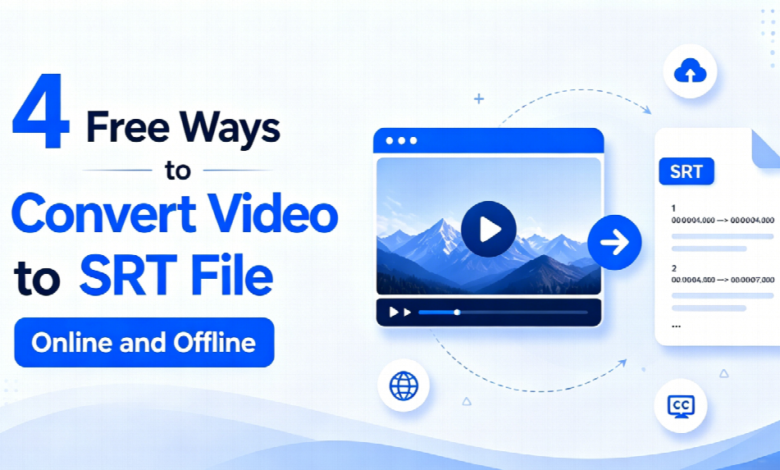
Here is a quick look at what a standard SRT file structure looks like:
1
00:00:01,000 –> 00:00:03,500
Learn how to convert video to SRT file for free online.
2
00:00:03,800 –> 00:00:07,200
Extract clean, millisecond-accurate subtitles in minutes.
Under the hood, a standard SubRip (.srt) file relies on a straightforward structure containing sequential numbers, millisecond timecodes, and matching text lines. Manually typing these lines out usually takes five to six hours for a single hour of video. To save you time, this guide breaks down four free, practical AI methods to automate your transcription workflow completely.
Approach 1: Streamlining Captions with Hoocs.ai
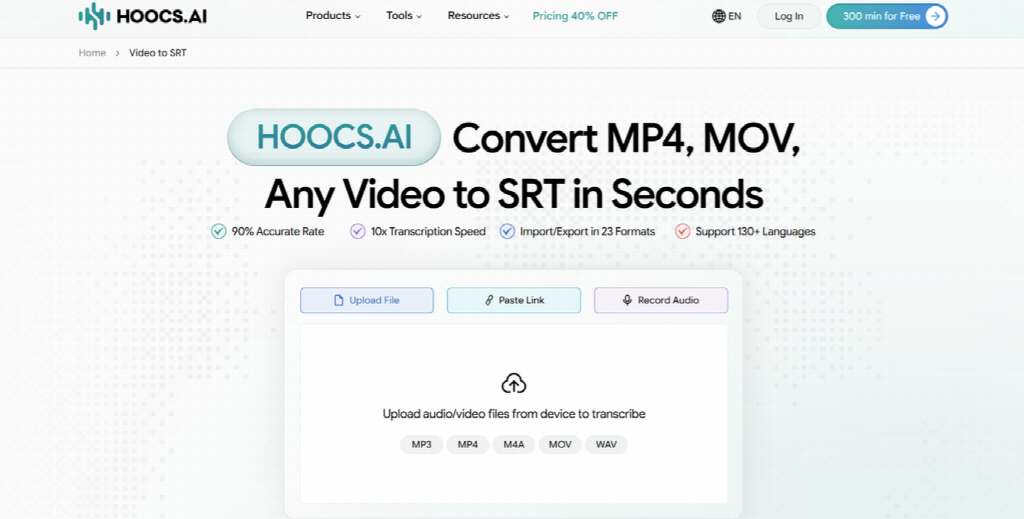
For creators who regularly publish video content, downloading large raw files to extract subtitles consumes unnecessary time and local storage. If you are looking for a reliable free online video-to-SRT converter, Hoocs.ai eliminates this bottleneck by letting you paste public video links directly. The platform processes media right from the web address, saving local storage space while sparing you from tedious file transfers.
Once the AI finishes transcribing your video, it opens a visual editor synced with a live video preview. It automatically tags different speakers throughout the conversation while matching captions to the audio track. You can easily tweak wording, adjust timecodes on the fly, and download clean, watermark-free SRT files ready for instant publication across your video channels.
Key Advantages
- Direct link parsing for YouTube URLs and cloud storage links
- Massive file support handling video uploads up to 10 GB
- Smart speaker tagging across 130+ supported languages
- Clean SRT exports with zero watermarks or forced branding
Limitations
- Stable connection needed for cloud transcription and editing
- Occasional edits needed for heavy accents or niche technical terms
Step-by-Step Subtitle Extraction in Hoocs.ai
Parsing captions straight from web links saves you the hassle of handling massive video downloads and raw file transfers. Here is a quick breakdown of how to turn video to SRT using Hoocs.ai:
- Sign up or log in to Hoocs.ai to access your main dashboard and claim your free trial allowance.
- Import your media source by dragging a local video file or pasting a public YouTube, Dropbox, or Google Drive URL.
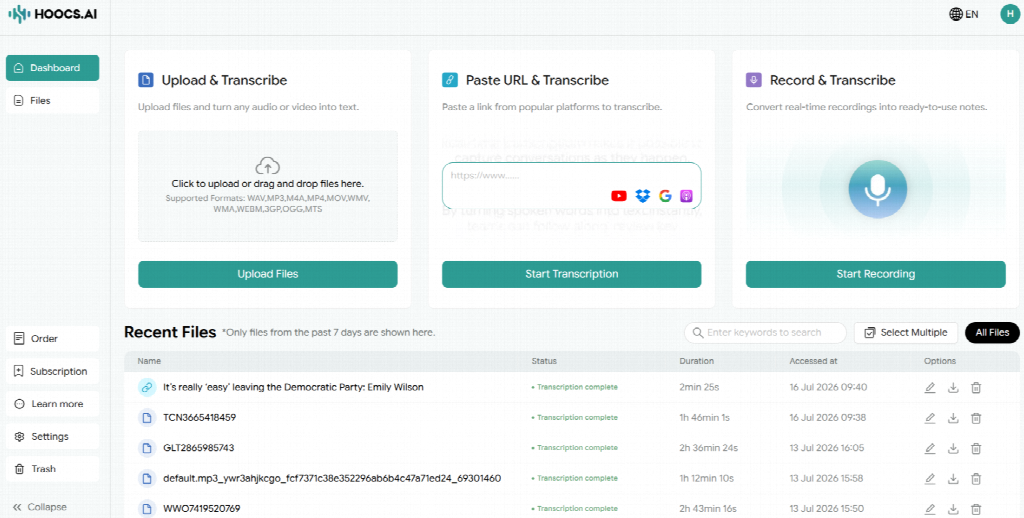
- Configure output parameters by selecting the primary spoken language and enabling speaker diarization if your clip features multiple people.
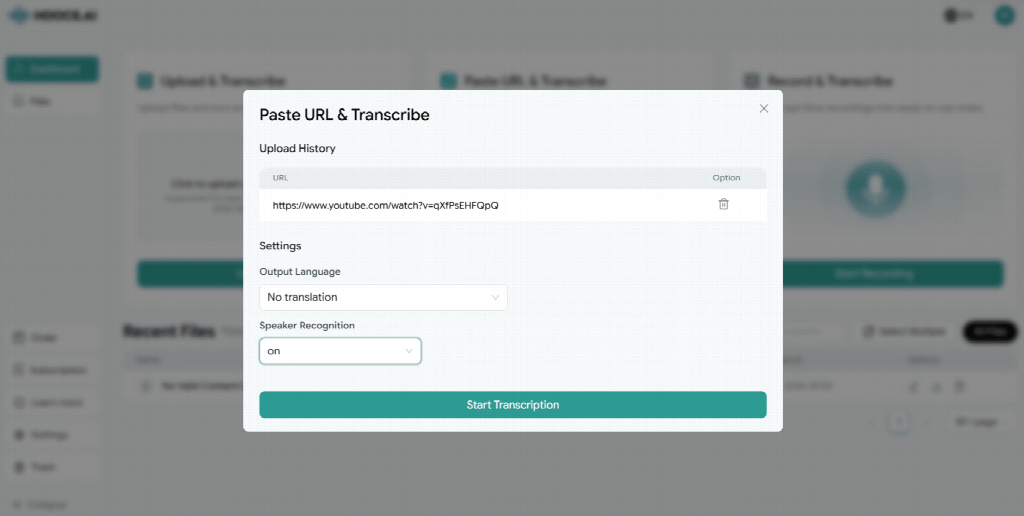
- Wait for the AI to complete transcription. Once finished, open the built-in editor to review your generated captions, summary notes, or mind maps.
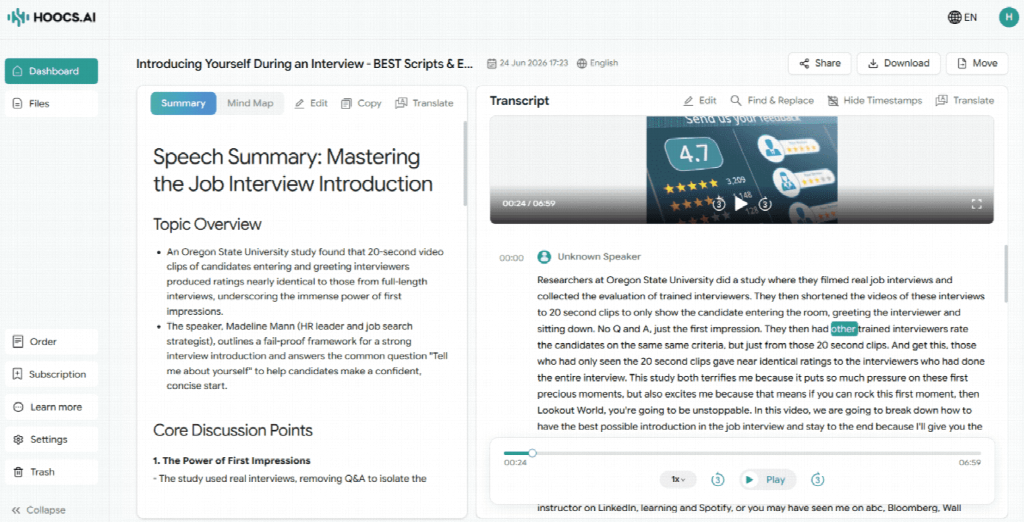
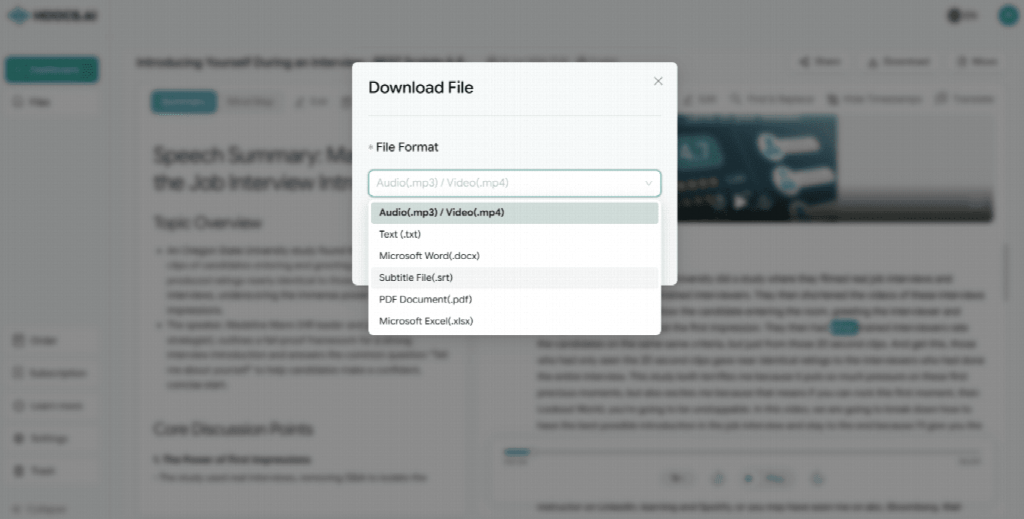
- Verify text alignment against the video preview, then click the Export button and choose the
.srtextension to save your subtitle file locally.
Approach 2: High-Precision Studio Transcription with Riverside.fm
Riverside.fm is a web-based studio platform designed for high-precision audio and video transcription. Its speech recognition engine efficiently processes multi-speaker conversations, heavy regional accents, and background audio. By training on extensive speech datasets, the system distinguishes different voices and generates transcriptions paired with accurate millisecond timecodes.
For creators prioritizing text accuracy, Riverside provides a browser-based tool requiring no software installation. Users can upload media files directly to extract subtitle tracks without navigating complex timeline editing workflows. While free usage includes monthly time limits, its vocabulary recognition makes it suitable for interviews and lectures.

Key Advantages
- Web-based accessibility requiring no local application installations
- Automated timecode alignment matching audio tracks down to milliseconds
- Flexible export options supporting both text and standard SRT formats
- Cloud-based processing handling media files off local system resources
Limitations
- Monthly usage caps enforced on non-paid user accounts
- Standard format restrictions limited primarily to MP4, MOV, MP3, and WAV
Extracting Accurate Subtitles via Riverside.fm
Using a dedicated online transcription tool ensures high accuracy without manual audio typing. Here is the step-by-step process for generating subtitle files using Riverside.fm:
- Navigate to the Riverside transcription panel in your web browser.
- Upload your video or audio file and allow the system to load the audio waveform.
- Select the primary spoken language and initiate the cloud transcription process.
- Review the generated text in the online editor to correct specific proper nouns or technical terms.
- Click the Export button and choose the
.srtformat to download your subtitle file.
Approach 3: Fast Web-Based Editing & Subtitling with FlexClip
FlexClip is a browser-based video editor that doubles as a versatile free video-to-SRT converter online for basic content workflows. Designed for social creators who manage video editing and captioning in a single environment, it eliminates the need to switch between separate transcription programs and video tools.
The platform supports speech-to-text conversion across more than 140 different languages and dialects, offering text editing features such as line splitting and merging. Users can adjust subtitle duration visually on a graphical timeline and export standalone SRT files directly without rendering full video projects.

Key Advantages
- Integrated video editing combining timeline adjustments with subtitle generation
- Expansive language coverage supporting over 140 global languages and dialects
- Direct SRT exports extracting subtitle files without rendering full video
- Intuitive visual layout suited for quick social media content creation
Limitations
- Browser memory constraints when processing large high-bitrate video files
- Stable connection needed for ongoing cloud editing and rendering
How to Generate Subtitles in FlexClip
Combining caption generation with video editing allows creators to verify text timing directly on the canvas. Follow these steps to generate an SRT file using FlexClip:
- Open the FlexClip web editor and upload your raw video file.
- Add the video to the timeline and select the Auto Subtitle tool from the sidebar menu.
- Choose the spoken language and start the automated subtitle recognition engine.
- Adjust text alignment on the timeline by double-clicking text blocks to edit wording or line breaks.
- Click the Export menu and select the standalone
.srtoption to download the subtitle file.
Approach 4: Offline Privacy and Open-Source Accuracy with Subtitle Edit
For creators handling proprietary video files, confidential interviews, or large 4K media without internet access, Subtitle Edit combined with OpenAI Whisper offers a fully offline open-source solution. Running directly on your computer’s local hardware, it processes audio tracks locally without uploading sensitive footage to external cloud servers or facing browser memory leaks.
Subtitle Edit integrates Whisper AI models locally, giving creators access to speech recognition across hundreds of languages. Because the software is open-source, users can review transcriptions, adjust timing with visual waveforms, and export standalone .srt files completely free of charge without encountering paywalls or subscription restrictions.
Key Advantages
- Complete offline privacy processing media locally without external server uploads
- Open-source software providing unlimited free SRT exports without paywalls
- High-accuracy AI engine powered by local OpenAI Whisper model integration
- Multi-format compatibility supporting exports for SRT, VTT, and ASS files
Limitations
- One-time model download required for offline recognition setup
- Transcription speed dependent on local GPU hardware performance
Step-by-Step Guide: Extract SRT File in Subtitle Edit
Running an open-source tool locally guarantees full data privacy and unrestricted subtitle exports. Follow these steps to generate SRT files using Subtitle Edit:
- Launch Subtitle Edit and open your video or audio file from the main file menu.
- Select Audio to text (Whisper) under the Video menu to open the offline transcription panel.
- Download or select your preferred Whisper model size based on your local GPU capacity.
- Click Generate to initiate local speech recognition and automatically load captions onto the waveform timeline.
- Review text alignment against the audio waveform, then click Save to export your clean
.srtsubtitle file.
Technical Solutions for Common Subtitle Alignment Issues
While automated tools save hours of manual transcription, raw output files often suffer from progressive timestamp drift or missing words caused by background noise. Without targeted technical adjustments, uncalibrated captions ruin viewer immersion. Below are technical solutions for common captioning bottlenecks:
- Fixing Progressive Timestamp Drift
Captions aligned perfectly at the start of a video may gradually desynchronize over 20 minutes of playback. This cumulative drift usually results from frame rate mismatches between source video (such as 23.976 fps) and converter tool defaults (such as 29.97 fps).
To correct existing SRT files, open them in dedicated open-source subtitle tools like Aegisub to apply a proportional global time scale or timecode shift across the entire track.
- Optimizing Recognition for Background Noise and Heavy Accents
Loud background music, wind noise, or regional accents can cause missed speech or garbled text output. Pre-processing the audio track through free open-source editors like Audacity using a high-pass filter below 100 Hz removes low-frequency rumble before running automated transcription.
Furthermore, configuring custom vocabulary dictionaries or terminology prompts in platforms like Hoocs.ai before transcription helps the AI identify specialized industry terms and brand names accurately.
Final Verdict
Choosing the right way to convert video to SRT depends on your source media, workflow, and accuracy needs. For web creators, Hoocs.ai provides a convenient option by parsing subtitles directly from video URLs. Meanwhile, teams transcribing multi-speaker interviews benefit from specialized platforms like Riverside.fm.
For social media creators, FlexClip combines timeline editing with automated captioning in a single browser. If you prioritize data privacy or handle large files locally, Subtitle Edit offers a reliable open-source desktop alternative. Pairing these tools with quick timing adjustments guarantees clean, well-aligned subtitles.